

AutoPod vs Native Premiere Multicam: Who Should Choose the Camera?
Decide when AutoPod camera automation helps and when native Premiere multicam is better, using reaction shots, demonstrations, and revision needs.
Last updated November 9, 2026. Comparison guidance is current as of 2026.
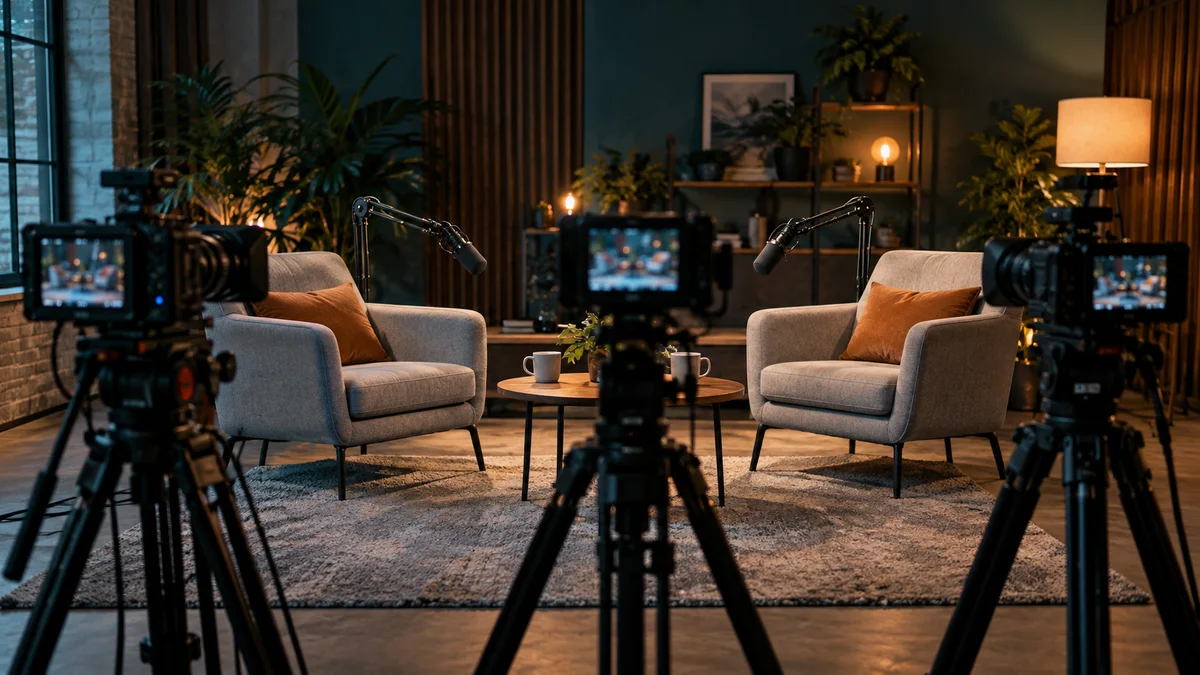
Use camera automation when the edit usually follows the active speaker and the recording gives it a consistent structure. Keep native Premiere multicam in the lead when the important shot is often a listener, a demonstration or a detail that speech alone does not explain.
That is a starting hypothesis, not a benchmark. Znippet publishes this documentation review and proposed test as an editing software vendor; we have not run a controlled AutoPod versus Premiere timing study.
Separate multicam setup from camera direction
Premiere's multicamera tools establish the structure for working with synchronized angles. AutoPod adds automatic camera editing. A comparison should therefore ask who makes the shot choices, rather than presenting the two as entirely separate editing environments.
Prepare a synchronized source with clear camera labels. Keep the same audio configuration for both workflows. If one version starts from poorly aligned footage, you are measuring preparation quality instead of camera-editing value.
Create an editorial brief before touching either method. For a straightforward interview, the brief might favor the speaker with occasional wide shots. For a product demonstration, it might prioritize hands whenever the presenter manipulates an object. Those rules imply different levels of useful automation.
Choose a sample with real editorial exceptions
Include a normal question and answer, an interruption, a shared laugh and a visual action. Add a moment when the listener's expression matters more than the words being spoken.
Write your preferred treatment for each exception without seeing an automated result. This avoids retrospectively accepting whatever the tool produced. The goal is not to declare every variation wrong; it is to protect the moments that carry meaning.
For example, a guest may describe a difficult decision while the host quietly reacts. Staying on the speaker can be technically coherent, yet the listener's expression may make the scene more human. That is an editorial choice you should keep available.
Compare total directing effort
Make one native multicam version and one automation-assisted version from equivalent starting material. Use Premiere shortcuts competently in the native pass.
Record time spent choosing shots, finding exceptions and repairing them. Separate disagreements over taste from objective defects such as a blocked face or an unusable angle. A producer can accept different rhythms while still rejecting those defects.
Do not infer quality from the number of cuts. More switching can create distraction; fewer cuts can feel deliberate or simply miss useful reactions. Review the entire sample at normal playback speed before counting individual edits.
Check what a later change affects
Open the camera source inside any nested structure, using Adobe's nesting guidance as a reference. Make one planned shot replacement and inspect the result in the finished sequence.
If you also deliver portrait clips, review that changed shot in the derivative. An angle that works in a wide master can be awkward after reframing. The correct camera for the episode is not automatically the correct camera for a vertical crop.
Save named checkpoints and configure Auto Save. When a client prefers the earlier treatment, recovery should be a controlled decision rather than a search through an uncertain history.
Make the choice by programme format
Automation is a strong candidate for recurring conversations with stable camera roles and a large amount of predictable coverage. Native direction may be preferable for emotionally sensitive interviews, comedy timing or visual demonstrations. A hybrid approach can automate the ordinary sections and reserve manual attention for exceptions.
Our Premiere podcast workflow comparison provides product context, while the Znippet plugin and podcast workflow address adjacent production needs. Treat those as separate buying decisions from camera direction.
Before adopting a workflow, package one finished sample and give another editor the task of replacing three angles. The method that survives that revision cleanly is the more useful fit for your show.
Sources and further reading
Background links used to check product details, terminology, and practical context.
- AutoPod features
AutoPod
Camera editing and social clip workflow scope.
- Create multi-camera source sequences
Adobe
Native multicamera structure and audio configuration.
- About nested sequences
Adobe
Nested structure and shared source behavior.
- Nest sequences
Adobe
Opening and inspecting nested source sequences.
- Premiere keyboard shortcuts
Adobe
Native keyboard workflow baseline.
- Consolidate and archive projects
Adobe
Media packaging and handles.
- Auto Save preferences
Adobe
Recovery preparation.
- Auto Reframe sequences
Adobe
Aspect-ratio reframing and nesting considerations.
Keep comparing workflows
Related comparison guides
Bring this workflow into your Premiere timeline
Use Znippet for Adobe Premiere Pro to find short-form moments, remove silences, add captions, and keep final control inside your existing edit.