

VEED vs Kapwing for Vertical Screen Demo Clips
Compare VEED and Kapwing for vertical screen demos. Test interface readability, crop corrections and replacement captures before choosing a browser editor.
Last updated October 27, 2026. Comparison guidance is current as of 2026.
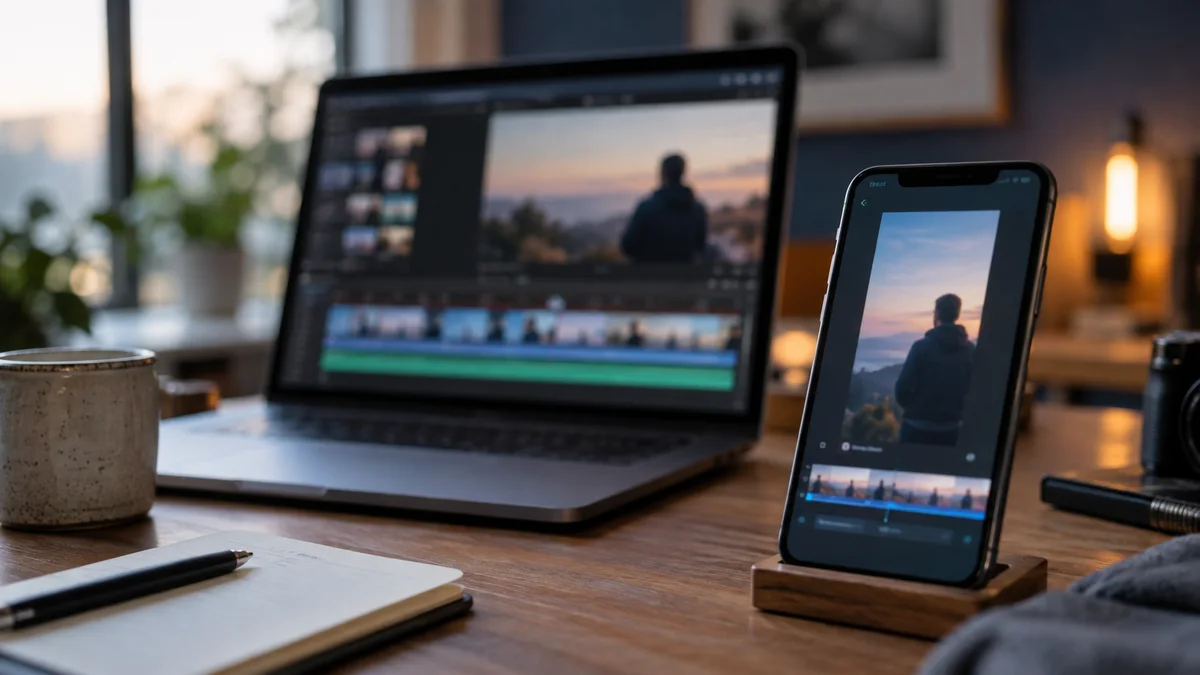
For vertical screen demos, choose VEED or Kapwing by the clarity of the exported demonstration after correction. A centered presenter does not help if the viewer cannot see the button being clicked. Both products deserve an editing trial; automatic highlight selection is only one part of this decision.
Znippet publishes this comparison as a competing vendor. The recommendations below come from documentation and a proposed practical exercise, not an independently measured product test.
Define the thing the viewer must see
Pick a short task with a visible result: create a filter, change a setting or compare two product states. Identify the essential screen regions before uploading anything. They might include a left navigation item, a modal in the center and a confirmation in the upper right.
A narrow portrait crop cannot always display all three at a readable size simultaneously. The edit may need consecutive close views or a deliberate layout that gives the interface most of the canvas. This is a composition problem, not evidence that the underlying clip finder is poor.
The broader online editor comparison introduces the products. Here the pass condition is whether a viewer can understand a real product action without returning to the full tutorial.
What the tools document
VEED's AI Clips guidance describes automatically selected clips followed by trimming and editor access. Its multiple-video guide explains how separate timeline rows support simultaneous visual elements.
Kapwing Studio's guide covers cropping, resizing and trimming layers. Its Repurpose documentation describes suggested excerpts. Neither description proves that a particular small interface control will remain legible in your export.
For a demo you already know you want, begin with manual selection in each editor. There is little value in asking an algorithm to rediscover a prescribed thirty-second task.
Compare one identical demo in two layouts
Use a clean screen recording with a separate presenter recording if available. Create a screen-dominant portrait layout, then a version with a small presenter tile. Use equivalent source material and target dimensions.
In each version, follow the cursor through the complete action. Check the state before the click, the click itself and the resulting change. If an important panel leaves the frame, correct that section instead of reducing the whole screen until every detail becomes tiny.
VEED's trim controls and Kapwing's advanced timeline tools are relevant to these adjustments. A good correction preserves enough time to understand what changed.
Use an actual phone for the decision
Export both corrected versions and watch at ordinary phone size. Avoid zooming into the player while judging legibility. Ask someone unfamiliar with the workflow which control changed and what happened afterward.
If they can repeat the narration but cannot identify the on-screen action, the clip is not yet a useful demo. Consider replacing the broad view with a larger crop of the relevant area. If that crop removes necessary context, split the task into two clips or retain a wider output format.
Watch visual transitions, too. VEED documents transitions and animations; adding one should not obscure the exact moment a product state changes. Kapwing's media library can help organize replacement screen captures, but organization alone does not ensure the correct version reaches the export.
Choose the correction workflow you can repeat
Prefer whichever editor lets your team place, resize and replace the necessary screen regions predictably. If the entire task requires frequent re-recording because the product interface changes, evaluate that revision before buying.
For teams keeping detailed screen demos in Premiere, review Znippet's social snippets feature and Premiere integration as a separate production option. The same phone-size readability requirement should apply.
Finish one complete task in both browser editors. Keep the exported example that a new viewer can accurately explain, and use the correction steps behind it as your buying evidence.
Sources and further reading
Background links used to check product details, terminology, and practical context.
- How to use our clips feature
VEED
Check clipping inputs, automated changes and subsequent editing.
- How to show multiple videos at the same time
VEED
Verify layered layouts and source placement.
- How to cut and trim your videos
VEED
Check manual correction of clip boundaries and gaps.
- How to use transitions and animations
VEED
Understand visual transitions when assembling or replacing shots.
- How to use the Repurpose tool
Kapwing
Check AI-assisted excerpt generation within the editing workflow.
- Getting started with Kapwing Studio
Kapwing
Verify crop, trim and layered visual editing controls.
- Advanced editing tips
Kapwing
Check timeline control, grouping and revision tools.
- Media Library sidebar
Kapwing
Understand how source assets enter an assembled edit.
Keep comparing workflows
Related comparison guides
Turn long-form footage into publishable clips
Use Znippet AI Shorts Maker to find strong moments, add readable captions, remove dead air, and export clips for Shorts, Reels, TikTok, and social channels.