

Stack Plugin Download and License Transfer: A Practical Checklist
Move a Stack Premiere setup to another computer with a license, preset, shortcut, media, and reopening checklist that separates setup from project data.
Last updated October 22, 2026. Comparison guidance is current as of 2026.
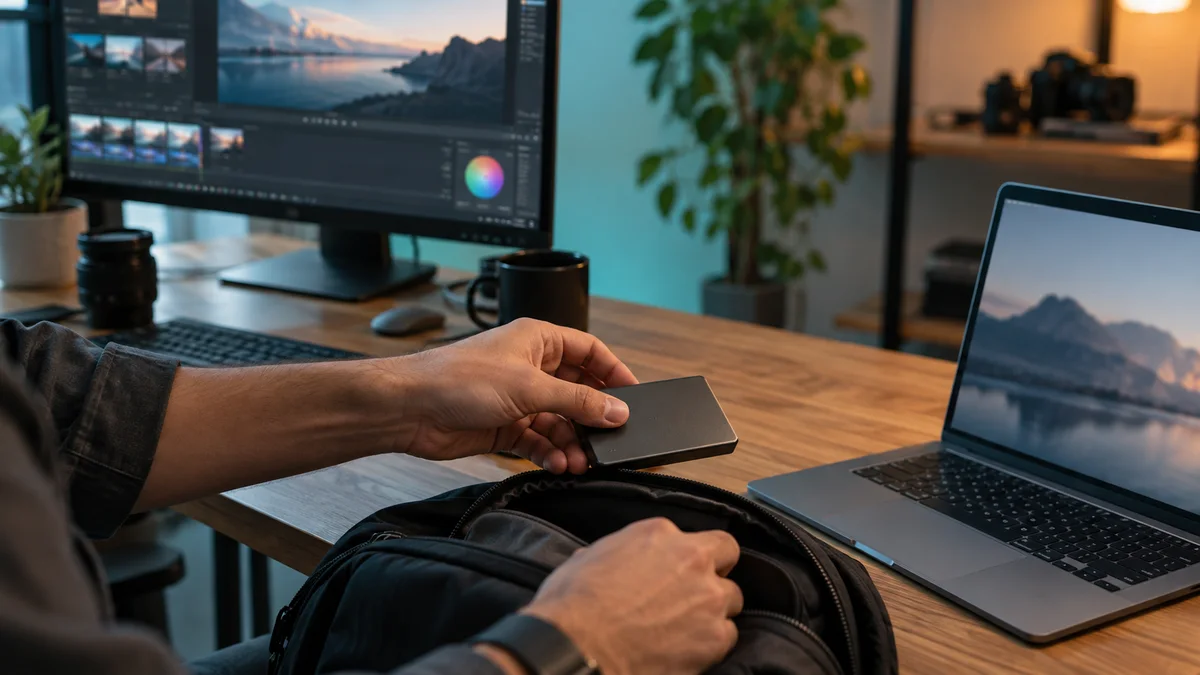
To download Stack or move it to another computer, begin at the developer's official product page and verify the license for your intended use. Then treat the software setup, personal shortcuts and Premiere project as three separate things. Successfully copying a project does not establish that the new workstation has your editing environment.
This guide concerns Stack by Rhys Obasi. Products with similar names may have different developers and installation steps. Znippet publishes this documentation review; it is not the Stack developer or a source of its installers.
Record what you are actually moving
Make a small inventory before changing machines. Include the host version, operating system, purchased product name, order account, preset files, personal shortcut choices and any external media used by your sample project.
Do not put a license key into a client handoff folder. Your colleague needs a description of dependencies and legitimate access instructions, not your private account credentials. Read the current license to establish permitted use, and consult the developer if your situation involves multiple users or a studio installation.
The refund policy is also worth reading before purchasing for a new environment. This guide does not assume that a purchase creates an unrestricted trial or that every machine move is automatically covered.
Separate the project from the controls
Your Premiere project contains editing decisions and references to media. Your shortcut configuration tells the local application how to execute commands. Your presets define reusable treatments. These should be accounted for independently.
Use Adobe's shortcut reference to identify native combinations you rely on. List the additional combinations in your personal workflow, then check them on the destination computer rather than assuming keyboard layouts and modifier keys behave identically.
Keep the original version of each important effect preset. A project containing one finished application is not a substitute for the reusable source preset if you intend to apply it again next week.
Use a representative transfer project
Choose a small sequence with one ordinary camera clip, one adjustment treatment, an animated shot and one external graphic. Package its media through an appropriate project archive process. Include a reference export so the destination has an unambiguous visual target.
Open that project on the second machine before making it your production workstation. Inspect media paths and follow Adobe's offline media guidance if anything needs relinking. Check the first and last frame of each source, not merely the disappearance of a missing-media warning.
Play the sequence, save a new copy, close it and reopen it. Then create one new treatment with your shortcut setup. This separates the ability to play existing work from the ability to reproduce the workflow.
Diagnose by the failed layer
If the old project looks correct but shortcuts fail, investigate the local configuration. If a shortcut works but creates a different look, inspect the preset and its supported properties. If footage is offline, investigate the media package before blaming the extension.
A hypothetical move from a desktop to a laptop can also expose a storage assumption: the project opens while an external asset remains on the desktop. That problem will return on the next delivery unless the package includes the asset or the path is documented.
For broader setup issues, use our Premiere plugin installation guide. The Znippet download page is only for Znippet products; use the Premiere product page to identify that separate software rather than mixing installers.
Keep the old environment until the move passes
Follow Adobe's update guidance when host versions differ. Avoid combining a computer move, a major application update and a new preset library into one unexplained change.
The move passes when existing output matches, required media is available, one new operation works and the project reopens successfully. Record the destination setup and keep a copy of the reference package. That gives you a concrete recovery point for the next workstation change.
Sources and further reading
Background links used to check product details, terminology, and practical context.
- Stack for Premiere Pro
Rhys Obasi
Product identity, shortcut behavior and documented limitations.
- Software license
Rhys Obasi
License scope when moving software or sharing projects.
- Refund policy
Rhys Obasi
Purchase and evaluation conditions.
- Premiere keyboard shortcuts
Adobe
Native keyboard workflow baseline.
- Effect presets
Adobe
Native effect reuse and application behavior.
- Consolidate and archive projects
Adobe
Media packaging and handles.
- Locate and link offline files
Adobe
Relinking checks during project transfer.
- Best practices for updating Premiere
Adobe
Version migration and rollback preparation.
Keep comparing workflows
Related comparison guides
Bring this workflow into your Premiere timeline
Use Znippet for Adobe Premiere Pro to find short-form moments, remove silences, add captions, and keep final control inside your existing edit.