

How Plugins Help You Meet Tight Video Editing Deadlines
Use Premiere Pro plugins to save editing time, automate captions, clean audio, create versions, and deliver polished videos under tight deadlines.
Last updated May 25, 2026. Comparison guidance is current as of 2026.
Summary
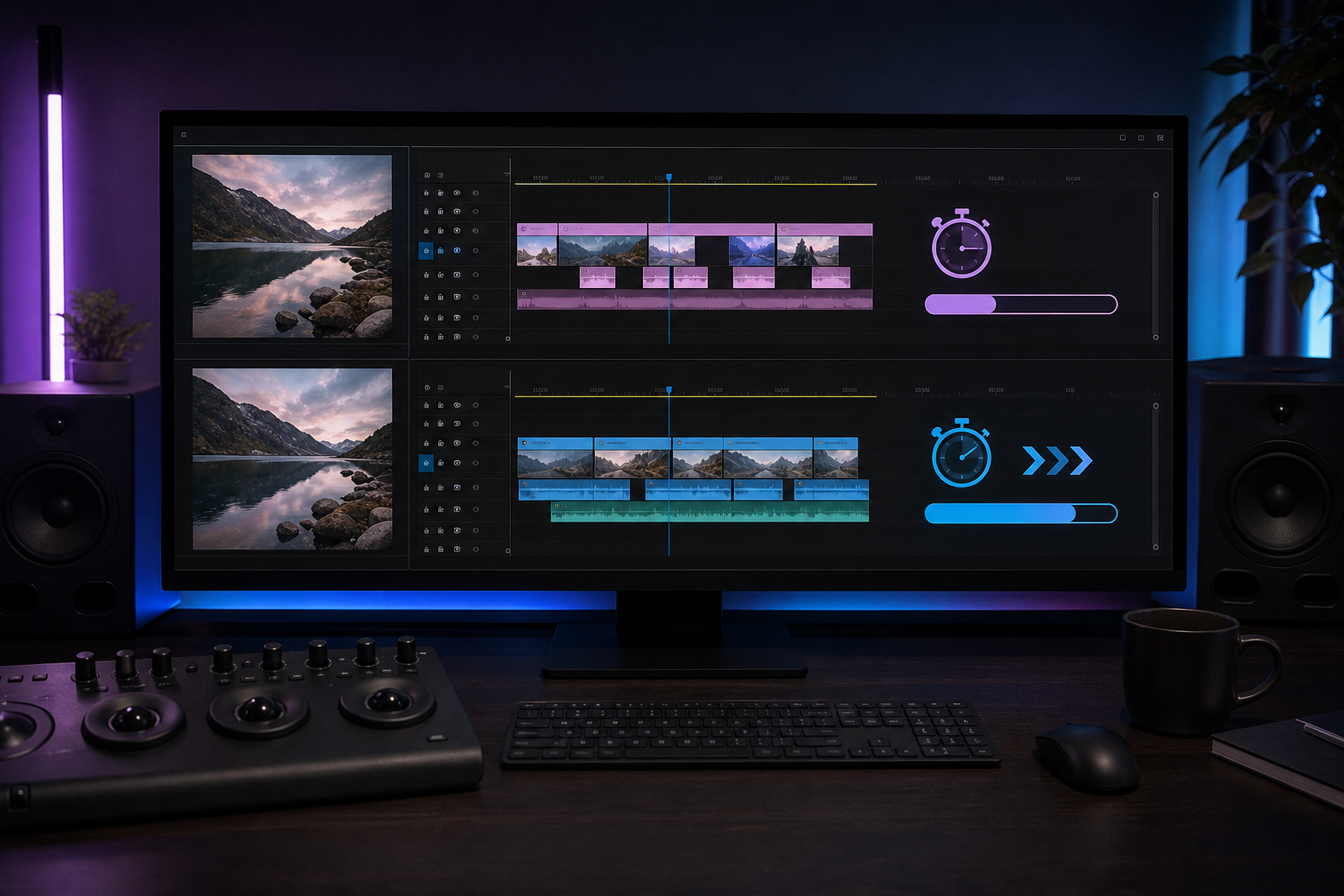
Premiere Pro plugins help with tight editing deadlines by automating repeated tasks, speeding up technical cleanup, and reducing manual versioning. The best plugins protect time for editorial decisions instead of replacing judgment.
Use plugins for captions, silence removal, audio cleanup, templates, exports, and short-form repurposing when the deadline is close. Znippet for Adobe Premiere Pro is useful when long footage needs to become publishable clips quickly.
Table of contents
- Where editing time disappears
- Automate the first pass
- Use plugins for technical cleanup
- Build deadline presets before the deadline
- Avoid plugin overload during rush work
- FAQ
Quick answers
- How do plugins help with editing deadlines? They compress repeated steps such as captions, cleanup, selections, templates, versions, and exports into faster actions.
- When should plugins be configured? Install, license, test, and preset plugins before the project starts so the deadline does not depend on a new workflow.
- Should you add new plugins during a rush job? Only when the workflow is blocked; new tools can add learning time, compatibility risk, and export problems.
Premiere Pro plugins help you meet tight deadlines by automating repeated tasks, speeding up technical cleanup, and reducing manual versioning. The best plugins do not replace editorial judgment; they protect time for the decisions that actually shape the final video.
When the deadline is close, use plugins for captions, silence removal, audio cleanup, templates, exports, and short-form repurposing. Znippet for Adobe Premiere Pro is useful when long footage needs to become publishable clips quickly.
Where editing time disappears
Deadlines usually fail because of small tasks that multiply: syncing, sorting selects, cutting dead air, cleaning audio, adding captions, resizing for platforms, exporting versions, and fixing notes.
None of those tasks feels huge on its own. Together, they can consume the time that should go into structure, pacing, and review.
Premiere Pro plugins are most useful when they compress those repeated steps into reliable actions. A plugin should reduce the number of manual decisions needed before the creative edit begins.
Automate the first pass
The first pass is where plugins can save the most time. Silence detection, transcript-based selection, clip finding, rough cut creation, and caption generation can turn raw footage into something editable faster.
For interviews, podcasts, webinars, and talking-head videos, Znippet for Adobe Premiere Pro can help identify useful moments and prepare short-form edits. That gives editors a stronger starting point than scanning the entire timeline manually. For related first-pass automation, see how to automate repetitive tasks in Premiere Pro with plugins.
Automation is not the final edit. Treat it as a fast assistant pass, then refine the cut for story, tone, rhythm, and brand fit.
Use plugins for technical cleanup
Audio cleanup plugins can reduce background noise, level voices, and prepare dialogue faster than manual effect tweaking. Caption plugins can create timed text quickly and let editors focus on corrections and style.
Template and motion graphics plugins can apply consistent lower thirds, titles, transitions, and branded elements without rebuilding them. Export plugins can create multiple deliverables from one timeline.
These tools matter under deadline because they prevent avoidable setup work. Editors can spend less time configuring and more time finishing.
Build deadline presets before the deadline
Plugins only help under pressure if they are already configured. Create presets for common formats such as YouTube, TikTok, Instagram Reels, LinkedIn, client review files, and internal drafts.
Save caption styles, audio cleanup settings, motion templates, export settings, and sequence presets in advance. Then test them on real footage before a live project depends on them. Adobe's official plugin and extension installation guidance is a useful setup reference before a deadline depends on a plugin.
The best deadline workflow is boring in the right places. Every predictable task should already have a preset, template, or plugin step.
Avoid plugin overload during rush work
Do not add new plugins in the middle of a deadline unless the current workflow is blocked. New tools create learning time, compatibility risk, and possible export problems.
Use a trusted plugin stack that your team has already tested. If a plugin is not essential to the delivery, leave it out until the project is complete.
Create a deadline-safe plugin list
Separate plugins into three groups before deadline work starts: trusted daily tools, useful but optional tools, and experimental tools. Only the first group belongs in a rush workflow. This keeps editors from losing time to setup, licensing prompts, or unexpected rendering behavior when delivery is close.
For social cutdowns, a plugin like Znippet should have a defined role: find usable moments, speed up captions or short-form preparation, and leave final judgment to the editor. When that role is clear, the plugin reduces repetitive work instead of adding another decision layer.
FAQ
Which Premiere Pro plugins save the most time?
Plugins for captions, audio cleanup, silence removal, social cutdowns, templates, and batch exports usually save the most time in deadline-driven edits.
Can plugins make video editing faster without hurting quality?
Yes, when they automate technical or repetitive work. Quality still depends on the editor reviewing pacing, story, captions, sound, and final delivery.
How should I prepare plugins for urgent projects?
Install, license, test, and preset them before the project starts. A plugin should already be part of the workflow before a deadline depends on it.
Sources and further reading
Background links used to check product details, terminology, and practical context.
- Adobe Premiere Pro official website
Adobe
Used as background context for product details, platform requirements, or workflow comparison.
- Working with captions in Premiere Pro
Adobe Help Center
Used as background context for product details, platform requirements, or workflow comparison.
- Speech to Text in Premiere Pro
Adobe Help Center
Used as background context for product details, platform requirements, or workflow comparison.
- Adobe Exchange apps for Premiere Pro
Adobe Exchange
Used as background context for product details, platform requirements, or workflow comparison.
- FireCut official website
FireCut
Used as background context for product details, platform requirements, or workflow comparison.
- AutoPod official website
AutoPod
Used as background context for product details, platform requirements, or workflow comparison.
- Motion Array official website
Motion Array
Used as background context for product details, platform requirements, or workflow comparison.
- Create YouTube Shorts
YouTube Help
Used as background context for product details, platform requirements, or workflow comparison.
Keep comparing workflows
Related comparison guides
Bring this workflow into your Premiere timeline
Use Znippet for Adobe Premiere Pro to find short-form moments, remove silences, add captions, and keep final control inside your existing edit.