

Audacity Truncate Silence vs Video Ripple Editing
Learn when Audacity Truncate Silence fits an audio podcast and when synchronized video needs coordinated ripple edits across cameras and microphone tracks.
Last updated October 16, 2026. Comparison guidance is current as of 2026.
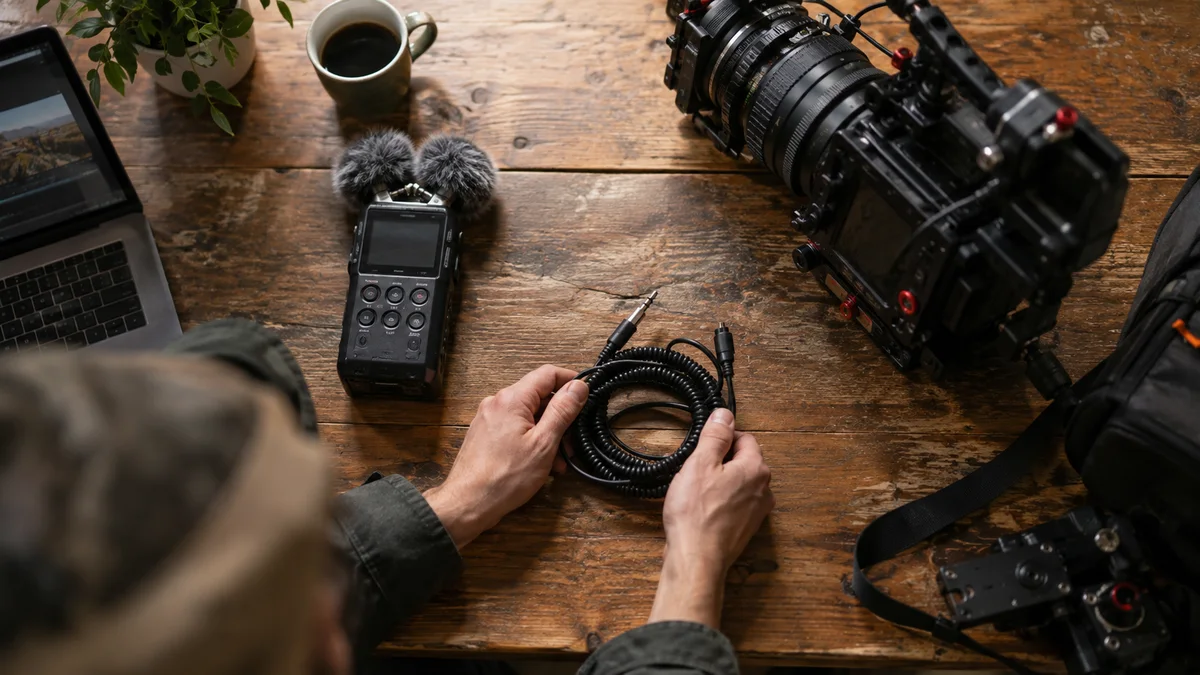
Audacity Truncate Silence can shorten an audio recording, but a shortened audio file is not a drop-in replacement for the original soundtrack of an uncut video. Once time disappears from the audio, everything after that deletion occurs earlier. Matching the first frame again cannot fix all the later offsets.
This documentation-based comparison is about that timing boundary. Znippet sells a Premiere Pro plugin, so we have an interest in video editing workflows. An audio-only podcast may still be better served by an audio editor you already understand.
What each operation changes
Audacity's Truncate Silence documentation describes shortening regions below a chosen level for a chosen duration. It also distinguishes processing selected tracks together from processing them independently. Independent processing is inappropriate when those tracks represent the same synchronized conversation.
In a video workflow, a coordinated ripple edit removes the same interval from the relevant picture and sound and closes the resulting gap. The important property is shared timing, not the name of the editing application. Any camera, microphone, overlay, or cue that should remain aligned needs to follow the intended edit.
These operations can lead to similar pacing in an audio export. They are not equivalent handoff formats for a video editor who needs to retain camera synchronization.
A simple example of the failure
Imagine an interview with a clap near the beginning, a hand gesture halfway through, and a laugh near the end. You export its dialogue to an audio editor and remove several pauses. On returning the file to the original video sequence, the clap still aligns because no earlier material changed.
The hand gesture and laugh no longer line up. Each deleted interval has moved subsequent audio earlier. Moving the whole audio clip fixes one point while breaking another. Stretching it to the original total duration also fails to recreate the original placement of every individual pause.
The correct repair is to return to an unshortened source or reproduce the exact editorial deletions in the video timeline. Do not conceal the problem with a series of arbitrary offsets; that creates a fragile project whose mistakes will surface at the next revision.
When Audacity is a good fit
Use an audio-first workflow when the deliverable is audio only, or when picture will be built around the finished audio rather than synchronized to an existing performance. Keep the original recording and create a working copy before processing.
With multiple microphones, select the conversation tracks intentionally and verify coordinated behavior on a small section. Audacity's Sync-Locked Track Groups guidance explains how timing edits relate across a group. Treat background music separately when deciding where silence exists: a continuous music bed can change what a detector sees.
Listen to both sides of several cuts, including quiet speech. Shortening a gap does not remove noise from the material that remains. If hiss or room sound is the real problem, changing the duration will not solve it.
When the video timeline should own the cuts
When there are synchronized cameras, screen recordings, or visual demonstrations, establish the shared timing before shortening dialogue. Adobe documents both audio-video synchronization and multi-camera source sequence creation. Those references explain preparation; they are not a guarantee that every later automated operation respects your particular track arrangement.
Create a duplicate edit sequence. Make one obvious test deletion and inspect every track you expect to move. Confirm that a later visible mouth movement still matches the dialogue, then undo the test before running the broader pacing pass.
If audio needs outside restoration, distinguish processing that keeps duration from editing that removes time. Deliver an unshortened cleaned file with the same intended start alignment, or agree on a proper conform workflow with the person finishing picture. Merely naming the output "final audio" does not communicate which operations occurred.
Approve the handoff, not just the sound
Check alignment near the start, middle, and end after any audio replacement. A single successful anchor proves only that point. Listen across edit boundaries for missing consonants and inspect transitions for accidental doubled sound.
The podcast production workflow guide provides a wider handoff context, while silence removal in Premiere is relevant when pacing changes belong inside the video project.
Before your next edit, write one sentence in the handoff note: whether the supplied audio keeps source timing or contains duration-changing edits. That small distinction prevents a large amount of avoidable reconstruction.
Sources and further reading
Background links used to check product details, terminology, and practical context.
- Truncate Silence
Audacity
Threshold-based shortening, independent tracks and limitations.
- Sync-Locked Track Groups - Editing
Audacity
Coordinated timing changes across audio tracks.
- Synchronize audio and video
Adobe
Alignment of separately recorded audio and video.
- Create multi-camera source sequences
Adobe
Synchronized multi-angle sequence preparation.
- Audio crossfade transitions
Adobe
Audio transition options for repairing edit boundaries.
- Noise Gate
Audacity
Level processing without deleting time.
- Detect and delete pauses in transcripts
Adobe
Native transcript pause and filler removal reference.
- Remove silences
FireCut
Guidance tracks, threshold, padding and preview controls.
Keep comparing workflows
Related comparison guides
Turn long-form footage into publishable clips
Use Znippet AI Shorts Maker to find strong moments, add readable captions, remove dead air, and export clips for Shorts, Reels, TikTok, and social channels.