

How to Make Realistic-Looking AI Videos
Use practical prompting, references, lighting, camera, editing, and review tips to make realistic-looking AI videos that hold up online today.
Last updated May 25, 2026. Comparison guidance is current as of 2026.
Summary
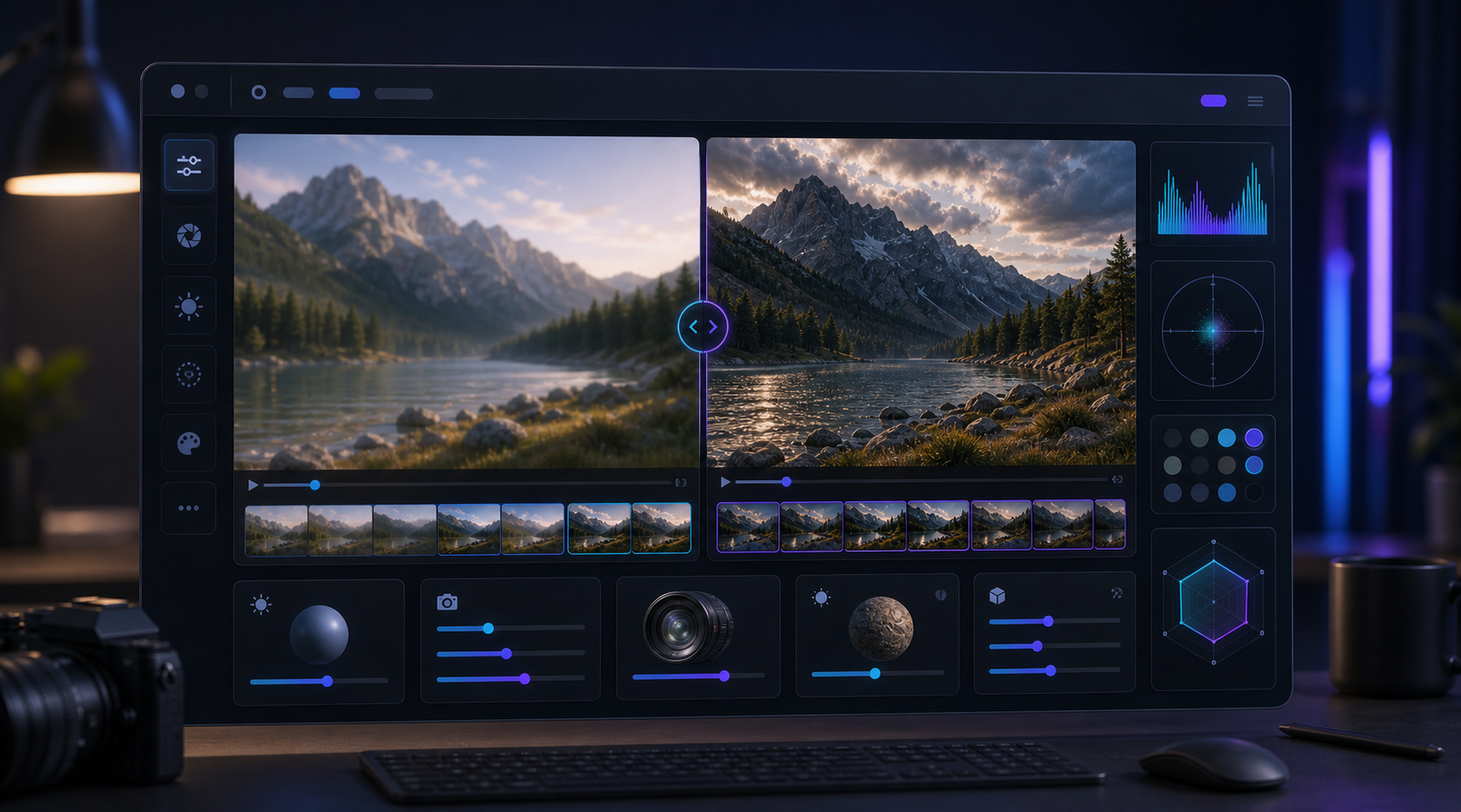
Realistic-looking AI videos come from specific scenes, useful references, simple movement, believable lighting, stable camera work, careful editing, and frame-by-frame review. The article explains how to define realism, use source material, prompt for physical details, trim artifacts, check mobile and desktop viewing, and avoid misleading realistic content.
Table of contents
- Define realism before prompting
- Use references whenever possible
- Keep movement simple
- Prompt for light, lens, and environment
- Edit the output like real footage
- Check realism frame by frame
- FAQ
Quick answers
- AI videos often look fake when prompts are vague, motion is too complex, lighting is inconsistent, camera movement feels unrealistic, or artifacts appear in faces, hands, text, and products.
- AI video can look like real phone footage when prompts use natural light, handheld stability, phone-camera framing, ordinary locations, and simple action.
- Regenerate when the subject or motion is wrong; edit when a strong clip only needs trimming, captions, pacing, audio, or color cleanup.
- Znippet AI Shorts Maker is useful when the realistic source already exists and needs short clips, captions, silence removal, and grounded pacing.
To make realistic-looking AI videos, start with a specific scene, use references, keep movement simple, and edit the output like real footage. Realism comes from restraint: believable lighting, stable camera work, natural pacing, and details that do not distract the viewer.
Define realism before prompting
"Realistic" can mean several things. It might mean documentary-style footage, a polished commercial, a phone-shot social clip, a cinematic product scene, or a natural talking-head video. Each one needs different prompts and review standards.
Before generating, decide what the viewer should believe. Are they supposed to think this is actual footage? Are they supposed to understand it as stylized AI? Are you using AI for B-roll, concept visualization, or a finished ad? The answer changes how strict you need to be.
For business and educational content, realism usually means the video does not pull attention away from the message. It does not need to be perfect cinema. It needs to look stable, clear, and trustworthy.
Use references whenever possible
References are one of the fastest ways to improve realism. A reference image can lock in the subject, environment, color palette, product shape, or character look. A source video can guide motion and framing. A brand guide can keep typography, color, and tone consistent.
If you are generating product content, use real product photos. If you are creating a founder video, use approved headshots or existing footage where appropriate. If you are making social clips from a podcast or webinar, start from the actual recording instead of creating synthetic talking heads.
Znippet AI Shorts Maker is useful when the realistic source already exists. It can help turn long videos into short clips, add captions, remove silence, and keep the final output grounded in real footage.
Keep movement simple
Complex motion is where AI video often breaks. Running, dancing, hand gestures, fast camera moves, crowded scenes, and detailed object interactions can create strange artifacts. If you want realism, use simpler motion.
Try prompts with slow push-ins, locked-off cameras, gentle handheld movement, subtle product rotation, or one clear action. A stable shot of a person opening a laptop is more believable than a crowded office scene with five people moving in different directions.
Camera language helps. Use phrases such as "static camera," "slow dolly in," "natural handheld phone video," "eye-level shot," or "shallow depth of field." Avoid asking for too many camera moves in one short clip.
Prompt for light, lens, and environment
Real footage has physical constraints. Light comes from somewhere. The camera has a lens. The background has depth. The subject casts shadows. Adding these details makes the model more likely to produce a believable scene.
For example, instead of "a realistic video of a coffee shop," try "eye-level phone video inside a small coffee shop, morning window light from the left, natural shadows, handheld but stable, customers softly blurred in the background." The second prompt gives the model visual rules.
Avoid overloading the prompt with style words. "Ultra realistic cinematic hyper detailed 8K masterpiece" may sound strong, but it can produce glossy, artificial results. Clear physical description is usually more useful than hype.
Edit the output like real footage
AI generation is not the finish line. Treat the result like raw footage. Trim weak starts, cut before artifacts become obvious, add sound design, adjust color, and use captions or graphics only where they help.
Shorter cuts can hide imperfections. If a hand looks strange after the fourth second, use the first three seconds and cut away. If a face changes near the end, do not force the shot to remain on screen.
For editors working in Adobe Premiere Pro, the Znippet Premiere Pro plugin can fit into a practical workflow for captions, silence removal, B-roll, and clip preparation while preserving manual control over the timeline. For prompt structure before the edit, pair this with what prompts work best for AI video generation.
Check realism frame by frame
Watch the video once like a normal viewer, then review it again for errors. Look for faces, hands, teeth, eyes, shadows, reflections, text, logos, product details, and movement through space.
Also test the video at the size where people will actually see it. A clip that looks flawed on a large monitor may work on a phone. The opposite can also happen: small captions, busy backgrounds, or low contrast may fail on mobile.
If the video includes claims, products, people, or medical, legal, financial, or safety topics, be stricter. Realistic AI video should not create misleading evidence or fake endorsements. Label and review content according to the platform, client, and use case, and check the FTC's advertising and marketing guidance for claims and endorsements.
FAQ
Why do my AI videos look fake?
They may have too much motion, vague prompts, inconsistent lighting, unrealistic camera movement, or visible artifacts in faces, hands, text, and products.
Can AI video look like real phone footage?
Yes. Use prompts with natural light, handheld stability, phone-camera framing, ordinary locations, and simple action. Avoid overly cinematic language if phone realism is the goal.
Should I fix AI video problems by regenerating or editing?
Regenerate when the core subject or motion is wrong. Edit when the clip is mostly strong and only needs trimming, captions, pacing, audio, or color cleanup.
Sources and further reading
Background links used to check product details, terminology, and practical context.
- Runway official website
Runway
Used as background context for product details, platform requirements, or workflow comparison.
- Pika official website
Pika
Used as background context for product details, platform requirements, or workflow comparison.
- Kling AI official website
Kling AI
Used as background context for product details, platform requirements, or workflow comparison.
- Adobe Premiere Pro
Adobe
Used as background context for product details, platform requirements, or workflow comparison.
- Working with captions in Premiere Pro
Adobe
Used as background context for product details, platform requirements, or workflow comparison.
- Captions and subtitles
W3C Web Accessibility Initiative
Used as background context for product details, platform requirements, or workflow comparison.
- FTC advertising and marketing guidance
Federal Trade Commission
Used as background context for product details, platform requirements, or workflow comparison.
- Copyright and Artificial Intelligence
U.S. Copyright Office
Used as background context for product details, platform requirements, or workflow comparison.
Keep comparing workflows
Use AI where it speeds up real video work
When you already have source footage, Znippet helps turn it into short-form clips with captions, silence removal, and exports that are ready for social publishing.