

How to Upscale AI-Generated Videos to 4K
A practical guide to upscaling AI-generated videos to 4K with cleaner source files, sharpness control, denoising, bitrate, and export checks.
Last updated May 25, 2026. Comparison guidance is current as of 2026.
Summary
Upscaling AI-generated videos to 4K works best when the source file is clean, the edit is finished, enhancement settings are conservative, and the export has enough bitrate for the platform. The article covers what upscaling can and cannot fix, source quality, method selection, sharpness, denoising, text and face checks, export settings, and quality control.
Table of contents
- Understand what 4K upscaling can and cannot do
- Start with the highest quality source
- Fix the edit before upscaling
- Choose the right upscaling method
- Control sharpness and denoising
- Watch for text, faces, and hands
- Export settings for 4K
- Quality control before publishing
- FAQ
Quick answers
- AI upscaling can improve resolution, reduce noise, smooth compression artifacts, and clean edges, but it cannot fully recover detail that was never generated.
- Finish trims, captions, audio, and aspect ratio before the 4K pass so only the final version is upscaled.
- Horizontal 4K is 3840 by 2160, while a common high-resolution vertical option is 2160 by 3840.
- Znippet is relevant earlier in the workflow when long assets need highlight selection, silence removal, captions, and structure before upscaling, especially when you turn long videos into Shorts with AI.
To upscale AI-generated videos to 4K, start with the cleanest possible source, choose an upscaler that preserves motion, avoid excessive sharpening, and export with enough bitrate for the final platform. Upscaling can improve presentation, but it cannot fully recover detail that was never generated.
The best results come from a careful post-production workflow: clean input, conservative enhancement, manual review, and platform-specific export settings.
Understand what 4K upscaling can and cannot do
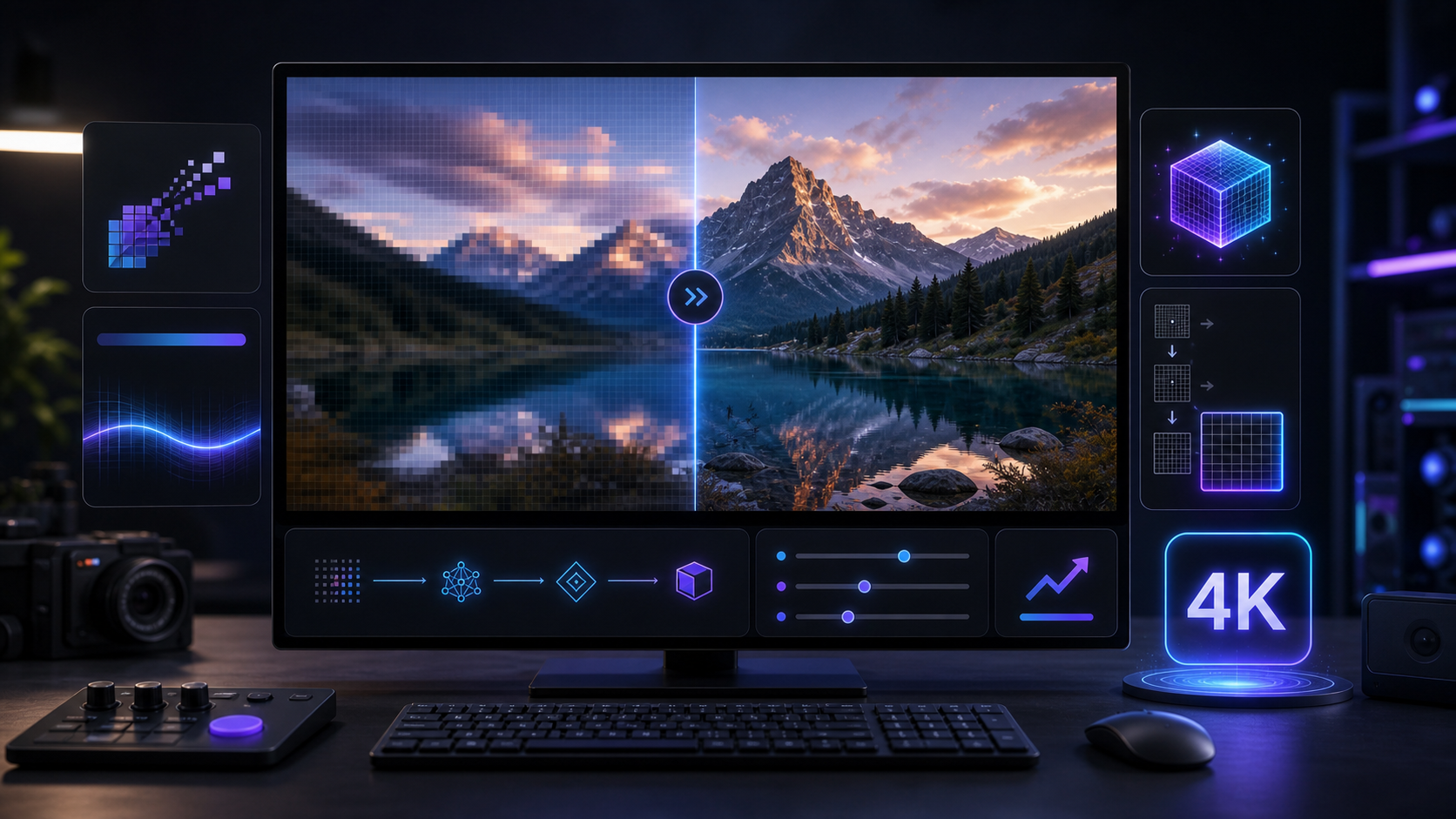
4K upscaling increases resolution to 3840 by 2160 for horizontal video or an equivalent high-resolution vertical format. AI upscalers can infer detail, reduce noise, smooth compression artifacts, and make edges look cleaner.
But upscaling is not magic. If the original AI-generated video has warped text, broken hands, inconsistent faces, heavy flicker, or strange motion, a 4K upscale may make those problems more visible. Fix obvious generation issues before increasing resolution.
Use upscaling as a finishing step, not as a repair strategy for a weak clip.
Start with the highest quality source
Generate or export the source video at the highest resolution and bitrate your tool allows. Avoid downloading a compressed preview, screen recording a browser, or using a watermarked draft as the input.
If your AI video generator offers quality settings, use the best available render before upscaling. If it lets you create a longer generation and trim later, export the clean section instead of re-encoding multiple times.
Every compression pass removes information. Keep a master file and make copies for testing so you do not degrade the only clean source.
Fix the edit before upscaling
Complete your core edit before the 4K pass. Trim the start and end, remove bad frames, correct pacing, add or lock captions, check audio sync, and decide the final aspect ratio.
If you are making short-form clips from longer generated or recorded assets, Znippet AI Shorts Maker can be relevant earlier in the workflow for selecting highlights, removing silences, and preparing captioned social clips. Upscaling should come after the clip is structurally finished.
Editors working in Adobe Premiere Pro can also use a plugin workflow for clipping and polish before sending the final sequence to a dedicated upscaler or export pipeline.
Choose the right upscaling method
There are three common routes: built-in editor scaling, dedicated AI upscaling software, and cloud-based enhancement tools. Built-in scaling is fast, but it may only resize pixels. AI upscaling can add perceived detail, but it takes longer and may create artifacts.
Use dedicated AI upscaling when the final asset needs to look polished on large screens, website hero sections, YouTube, sales pages, or client presentations. For fast social posts, a clean 1080p or 1440p export may be enough, especially on mobile.
The best upscaler for AI-generated footage is one that handles temporal consistency. That means it should keep details stable from frame to frame instead of making textures shimmer.
Control sharpness and denoising
Over-sharpening is one of the easiest ways to make AI video look artificial. It can create crunchy edges, noisy skin, flickering textures, and halos around subjects.
Start with moderate settings. Use denoising only when the source has visible grain, blockiness, or compression noise. If the clip already looks smooth, too much denoising can remove texture and make faces look plastic.
Review the result at 100 percent size. Then watch it in motion, because some artifacts only appear during playback.
Watch for text, faces, and hands
AI-generated videos often fail in predictable areas. Text can melt, faces can shift, and hands can change shape. Upscaling may make these issues clearer, especially on a 4K display.
If the clip includes important text, consider replacing it with real text in your editor instead of relying on generated text. For captions, use proper caption layers or burned-in subtitles from an editing tool, not text that was generated inside the image.
For faces and hands, compare the upscaled version against the source. If the enhanced version introduces new distortions, lower the enhancement strength or try another model.
Export settings for 4K
For horizontal 4K, export at 3840 by 2160. For vertical short-form video, a common high-resolution option is 2160 by 3840. YouTube lists 3840 by 2160 in its official video resolution and aspect ratio guidance. Use H.264 for broad compatibility or H.265 when you need smaller files and the platform supports it.
Bitrate depends on frame rate, motion, codec, and platform. As a practical starting point, use a higher bitrate for 4K than for 1080p, then test the upload. Fast motion, gradients, and detailed scenes need more data.
Keep the frame rate consistent with the source unless you have a specific reason to change it. Frame interpolation can make motion smoother, but it can also create unnatural movement.
Quality control before publishing
Watch the final export on more than one screen. Check a desktop monitor, a phone, and the actual upload preview if possible. Platform compression can change the look of gradients, captions, and fine texture.
Look for flicker, audio drift, caption softness, edge halos, face changes, and banding. If the 4K version looks worse than the 1080p version after compression, publish the cleaner file.
4K is useful only when it improves the viewer experience. A stable, sharp 1080p clip can outperform a noisy, overprocessed 4K export.
FAQ
Can I upscale any AI-generated video to 4K?
Technically yes, but not every video benefits. Clips with major generation errors may look worse after enhancement because artifacts become more visible.
Should I upscale before or after editing?
Usually after editing. Finish trims, captions, audio, and aspect ratio first so you upscale only the final version.
Is 4K necessary for TikTok, Reels, or YouTube Shorts?
Not always. Mobile platforms often compress uploads heavily. A clean high-bitrate 1080p or 1440p file may be enough, but 4K can help when the source and export are clean.
Sources and further reading
Background links used to check product details, terminology, and practical context.
- Runway official website
Runway
Used as background context for product details, platform requirements, or workflow comparison.
- Pika official website
Pika
Used as background context for product details, platform requirements, or workflow comparison.
- Kling AI official website
Kling AI
Used as background context for product details, platform requirements, or workflow comparison.
- Adobe Premiere Pro
Adobe
Used as background context for product details, platform requirements, or workflow comparison.
- Video resolution and aspect ratios
YouTube Help
Used as background context for product details, platform requirements, or workflow comparison.
- YouTube Shorts
YouTube Help
Used as background context for product details, platform requirements, or workflow comparison.
- FTC advertising and marketing guidance
Federal Trade Commission
Used as background context for product details, platform requirements, or workflow comparison.
- Copyright and Artificial Intelligence
U.S. Copyright Office
Used as background context for product details, platform requirements, or workflow comparison.
Keep comparing workflows
Turn the workflow from this guide into finished clips
Use Znippet to turn long-form videos into ready-to-post clips with captions, silence removal, social formats, and high-resolution exports.