

How to Make AI Videos Look Less Obvious
Make AI videos look less obvious with better prompts, cleaner motion, shorter cuts, realistic lighting, sound design, captions, and editing polish.
Last updated May 25, 2026. Comparison guidance is current as of 2026.
Summary
AI videos look less obvious when the scene is simple, motion is controlled, lighting is realistic, cuts happen before artifacts appear, and the final edit uses sound, captions, color, and real material where useful. The article focuses on common AI tells, shorter shots, grounded prompts, text and logo control, and a practical quality checklist.
Table of contents
- Remove the usual AI tells
- Use shorter shots
- Keep prompts realistic and grounded
- Match lighting to real footage
- Avoid generated text and logos
- Use sound to sell the shot
- Mix AI with real material
- Build a quality checklist
- FAQ
Quick answers
- AI videos often look fake because of unstable motion, distorted details, unnatural lighting, unreadable text, or overly complex prompts.
- Editing can make AI footage feel more natural through shorter cuts, color matching, sound design, captions, overlays, and trimming.
- Generated text, logos, interfaces, and brand marks should usually be added in post-production instead of generated in the image.
- Znippet can support short-form workflows by helping identify usable moments, add captions, and shape pacing from real source footage.
AI videos look less obvious when you simplify the scene, control motion, use realistic lighting, cut before artifacts appear, and finish the clip with sound, captions, and color correction. The goal is not to hide AI at all costs; it is to make every shot feel intentional and useful.
Most obvious AI video problems come from asking too much of the model. A focused shot with one subject and one action is easier to believe than a complex scene full of faces, hands, text, logos, and fast movement.
Remove the usual AI tells
Common AI video tells include warped hands, changing faces, melting objects, unreadable text, floating props, inconsistent shadows, duplicated background details, and motion that feels slippery. Viewers may not know the technical reason, but they can feel that something is wrong.
Review every generated clip at normal speed and frame by frame. Look at hands, eyes, teeth, jewelry, logos, reflections, background signs, and edges of moving objects. If a defect appears near the end, trim the clip earlier. If it appears throughout, regenerate with a simpler prompt.
Do not assume a small artifact is invisible on mobile. Short-form viewers pause, rewatch, and comment on strange frames.
Use shorter shots
Shorter cuts hide instability and improve pacing. Many AI clips look convincing for two or three seconds before the motion drifts. Use that strong section and move on.
This is how real editing works too. A professional video does not need every shot to last ten seconds. Quick inserts, detail shots, and reaction-style visuals can create a polished rhythm without forcing one generated clip to carry the whole scene.
For Shorts, Reels, and TikToks, short shots also fit viewer behavior. If you are repurposing long videos into short-form content, Znippet AI Shorts Maker can help identify usable moments, add captions, and shape the pace. AI-generated B-roll can then support the clip instead of becoming the entire product.
For related short-form production advice, see how to create AI videos without any experience and the AI shorts maker workflow.
Keep prompts realistic and grounded
If you want less obvious AI video, avoid prompts that combine too many hard tasks. Realistic faces, exact hand gestures, readable text, branded packaging, complex action, and fast camera movement are all difficult. Combining them increases the chance of artifacts.
Better prompts use ordinary actions: walking slowly, looking toward a window, placing an object on a desk, opening a notebook, rotating a product, or standing in soft light. Add camera and lighting direction, but keep the scene manageable.
Use negative constraints sparingly: no text, no watermark, no distorted hands, no extra fingers, no logo, no flicker. Too many exclusions can make the result unpredictable.
Match lighting to real footage
AI footage often looks obvious when it is too glossy, too sharp, or too evenly lit compared with the rest of the edit. Match the lighting to your surrounding clips.
If your video is a natural talking-head YouTube edit, use soft daylight or practical room light. If your footage is a polished product video, use clean studio lighting. If your content is documentary-style, avoid hyper-saturated fantasy lighting unless the contrast is intentional.
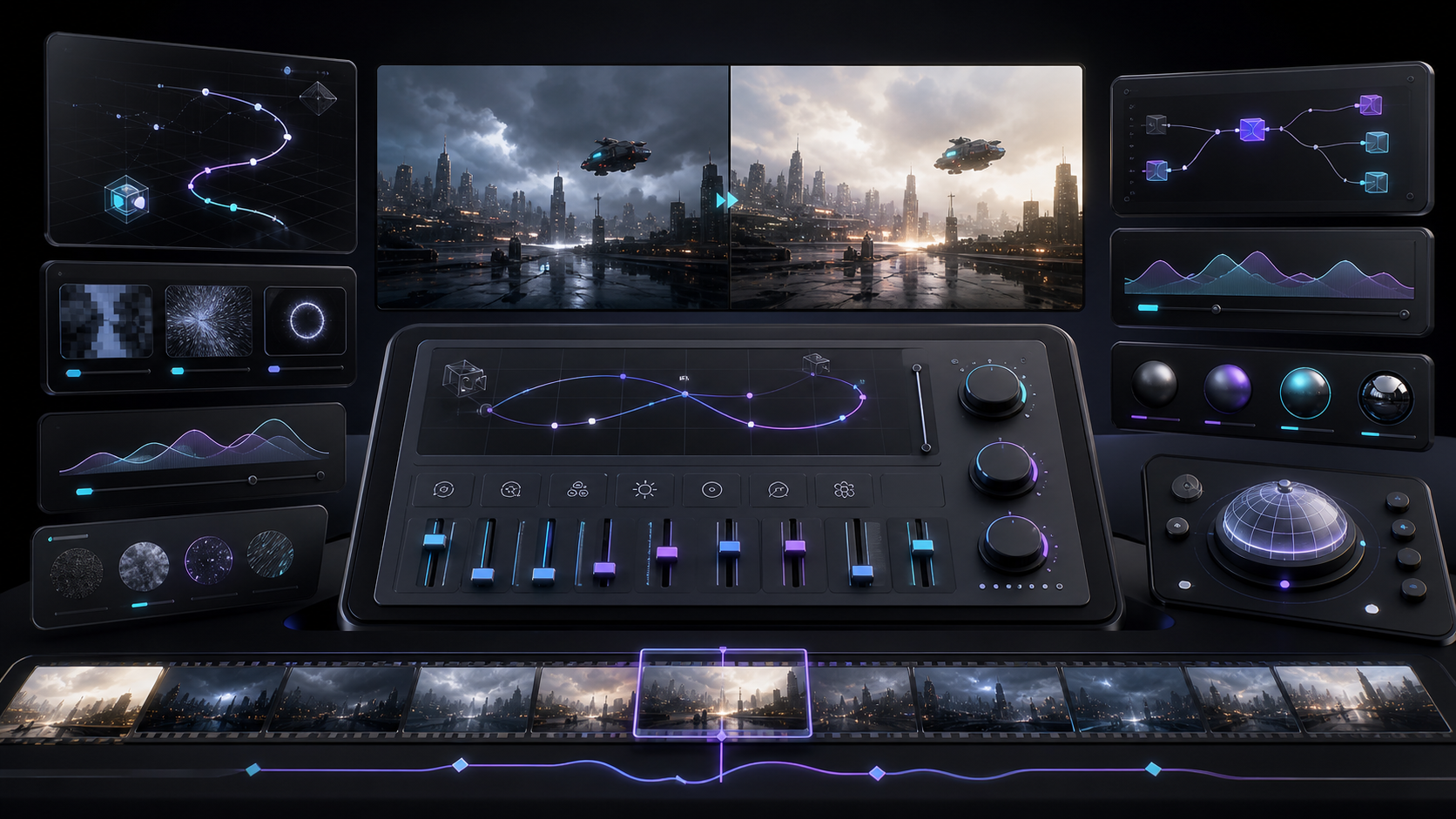
Color correction helps. Reduce excessive saturation, soften overly crisp highlights, balance skin tones, and add a subtle grade that matches the rest of the timeline.
Avoid generated text and logos
AI models still struggle with accurate text, symbols, interface details, and brand marks. If the viewer needs to read it, add it in post-production.
For YouTube content, use real screenshots for software, real product images for reviews, and designed overlays for titles. For client work, place approved logos and legal copy manually in the editor. This gives you control and reduces legal and quality issues.
If you work in Adobe Premiere Pro, a plugin-based workflow can help because you can combine AI-assisted clips with captions, overlays, trims, and timeline edits in one place instead of treating the generation as the final asset.
If the clip appears realistic and meaningfully synthetic, check YouTube's altered or synthetic content disclosure guidance before publishing.
Use sound to sell the shot
Sound makes AI footage feel more physical. A simple whoosh, room tone, footsteps, keyboard tap, camera shutter, fabric movement, or low music bed can make a clip feel connected to the edit.
Keep sound subtle. Overdone effects can make the video feel artificial in a different way. The best sound design supports motion that is already visible.
Captions also help short-form clips feel complete. They give viewers something stable to follow while AI B-roll plays underneath or between talking-head moments.
Mix AI with real material
AI video looks less obvious when it is not isolated. Combine it with real footage, screen recordings, licensed stock, original graphics, interviews, and captions. The human-made context gives the generated clip a role.
For example, a YouTube explainer might use real narration, source-based claims, simple graphics, and a few generated mood shots. A brand short might use real product footage plus AI backgrounds or transitions. A podcast clip might use the real speaker and AI B-roll only where it clarifies a point.
Build a quality checklist
Before publishing, ask whether the subject stays consistent, motion feels grounded, lighting matches the edit, text is readable or removed, rights are clear, captions are accurate, and the clip improves the story. If a shot fails two or more checks, replace it.
The most professional move is often restraint. Use the strongest few seconds, cut cleanly, and let the edit do the work.
FAQ
Why do AI videos look fake?
They often look fake because of unstable motion, distorted details, unnatural lighting, unreadable text, or prompts that ask the model to handle too many things at once.
Can editing make AI video look realistic?
Editing can help a lot. Shorter cuts, color matching, sound design, captions, overlays, and careful trimming can make AI footage feel more natural.
Should I disclose that a video uses AI?
Disclose when required by platform rules, when the content could mislead viewers, or when realistic synthetic media involves people, events, or sensitive topics.
Sources and further reading
Background links used to check product details, terminology, and practical context.
- Runway official website
Runway
Used as background context for product details, platform requirements, or workflow comparison.
- Pika official website
Pika
Used as background context for product details, platform requirements, or workflow comparison.
- Kling AI official website
Kling AI
Used as background context for product details, platform requirements, or workflow comparison.
- Canva official website
Canva
Used as background context for product details, platform requirements, or workflow comparison.
- Adobe Premiere Pro official product page
Adobe
Used as background context for product details, platform requirements, or workflow comparison.
- Adobe Audition user guide
Adobe
Used as background context for product details, platform requirements, or workflow comparison.
- OpusClip official website
OpusClip
Used as background context for product details, platform requirements, or workflow comparison.
- vidyo.ai official website
vidyo.ai
Used as background context for product details, platform requirements, or workflow comparison.
- Descript official website
Descript
Used as background context for product details, platform requirements, or workflow comparison.
- VEED official website
VEED
Used as background context for product details, platform requirements, or workflow comparison.
- Kapwing official website
Kapwing
Used as background context for product details, platform requirements, or workflow comparison.
- Submagic official website
Submagic
Used as background context for product details, platform requirements, or workflow comparison.
- Captions official website
Captions
Used as background context for product details, platform requirements, or workflow comparison.
- CapCut official website
CapCut
Used as background context for product details, platform requirements, or workflow comparison.
- Riverside official website
Riverside
Used as background context for product details, platform requirements, or workflow comparison.
- Apple Podcasts requirements
Apple Podcasts for Creators
Used as background context for product details, platform requirements, or workflow comparison.
- YouTube Help: Create a podcast on YouTube
YouTube Help
Used as background context for product details, platform requirements, or workflow comparison.
- YouTube Help: Create YouTube Shorts
YouTube Help
Used as background context for product details, platform requirements, or workflow comparison.
- YouTube Help: Altered or synthetic content disclosure
YouTube Help
Used as background context for product details, platform requirements, or workflow comparison.
- YouTube Help: YouTube channel monetization policies
YouTube Help
Used as background context for product details, platform requirements, or workflow comparison.
- W3C: Captions and subtitles
W3C
Used as background context for product details, platform requirements, or workflow comparison.
- FTC: Advertising and marketing guidance
Federal Trade Commission
Used as background context for product details, platform requirements, or workflow comparison.
Keep comparing workflows
Turn long-form footage into publishable clips
Use Znippet AI Shorts Maker to find strong moments, add readable captions, remove dead air, and export clips for Shorts, Reels, TikTok, and social channels.