

How to Get Started With AI Video Creation Today
Learn how to start AI video creation today with a simple workflow for ideas, scripts, source footage, captions, editing, review, and publishing.
Last updated May 25, 2026. Comparison guidance is current as of 2026.
Summary
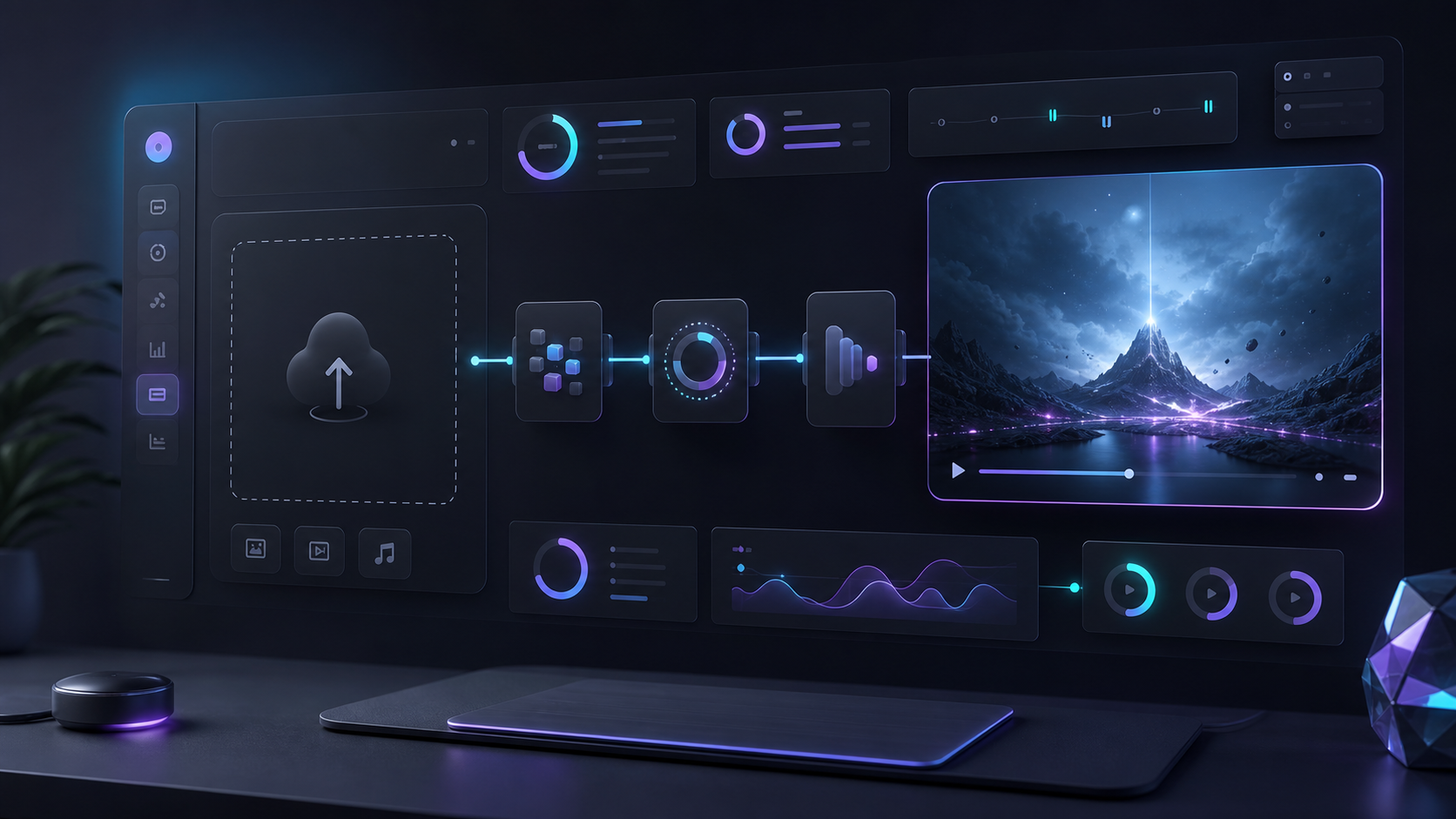
Getting started with AI video creation means choosing one clear use case, gathering source material, writing a short brief, generating or selecting a first cut, adding captions, formatting for the platform, reviewing quality, and repeating based on performance. The fastest first project is usually a short vertical clip from existing footage.
Table of contents
- Pick one outcome before choosing tools
- Start from existing footage when possible
- Write a short brief
- Generate or select the first cut
- Add captions and clean pacing
- Format for the platform
- Review with a simple quality checklist
- Measure and repeat
- FAQ
Quick answers
- You can start AI video creation today by choosing one outcome and using AI for ideas, clips, captions, edits, or exports.
- Repurposing an existing long video into one short vertical clip is an easy first AI video project.
- Captions, pacing, framing, brand safety, and a final call to action should be checked before publishing.
- Znippet AI Shorts Maker is relevant when existing recordings need to become short clips with silence removal, captions, and social-ready output.
You can start AI video creation today by choosing one clear use case, gathering source material, and using AI for the steps that slow you down most. The fastest path is usually not full automation; it is a repeatable workflow for ideas, clips, captions, edits, and exports.
If you already have long videos, podcasts, webinars, or interviews, begin by repurposing that content. If you have no footage, start with a short script and create a simple AI-assisted video around one message.
Pick one outcome before choosing tools
AI video creation is a broad category. It can mean text-to-video generation, avatar videos, AI editing, captioning, B-roll suggestions, clipping long videos, or upscaling finished assets. You will move faster if you define the outcome first.
Choose one target such as a YouTube Short, a product explainer, a training video, a TikTok ad, a podcast clip, or a social teaser. Each format has different requirements for length, aspect ratio, pacing, captions, and visual style.
For a first project, pick something short. A 30 to 60 second vertical clip is easier to evaluate than a five minute generated video, and it teaches you the core workflow quickly.
If you are starting from zero, pair this with how to create AI videos without any experience and what skills you need to create professional AI videos. For publishing realistic AI-assisted work, YouTube's official altered or synthetic content disclosure guidance is a useful early checkpoint.
Start from existing footage when possible
The most practical AI video workflow often starts with material you already own. A recorded Zoom call, webinar, podcast, course lesson, livestream, or YouTube video may contain several strong short clips.
Existing footage gives AI more context to work with. Instead of asking a model to invent everything, you can ask AI to find highlights, tighten pacing, create captions, and format the result for social platforms.
This is where Znippet AI Shorts Maker is relevant. It can help turn long-form recordings into short clips by identifying moments, removing silences, adding captions, and preparing social-ready outputs.
Write a short brief
Before using any AI tool, write a plain brief. Include the audience, goal, topic, tone, platform, length, and call to action. A basic brief prevents the workflow from drifting.
For example: "Create a 45 second vertical clip for YouTube Shorts. Audience: first-time founders. Topic: why customer interviews beat guessing. Tone: direct and practical. End with a soft prompt to watch the full episode."
This brief can guide prompt writing, clip selection, captions, title options, and final review. It also helps if you hand the asset to an editor or teammate.
Generate or select the first cut
If you are using text-to-video, start with a specific prompt and expect to iterate. Include scene details, motion, visual style, aspect ratio, and any constraints. Keep the first video short so you can evaluate quality quickly.
If you are using existing footage, let the AI generate candidate clips. Then review them manually. AI can rank moments, but you should still check whether the clip makes sense without context, starts quickly, and delivers one clear idea.
Avoid trying to save every good moment. A strong short-form video usually makes one point well. If a clip needs too much explanation, use a different clip.
Add captions and clean pacing
Captions are not optional for most social video workflows. Many viewers start with sound off, and captions help them follow the message immediately. Use clear, readable captions with enough contrast and safe spacing for platform UI.
Remove long pauses, false starts, repeated filler, and dead air. Silence removal can make a clip feel sharper without changing the speaker's meaning. Watch the edit after trimming to make sure the rhythm still feels natural.
For editors who prefer timeline control, a Premiere Pro plugin can be useful. Znippet's Premiere Pro plugin is relevant when you want AI-assisted clipping, captions, and silence removal while staying close to a professional edit.
Format for the platform
Different platforms reward different formats. TikTok, Instagram Reels, and YouTube Shorts usually need vertical 9:16 video. LinkedIn may work with square, vertical, or horizontal depending on the audience. YouTube long-form still favors horizontal 16:9.
Check framing before export. Faces, captions, product screens, and key visuals should not sit under platform buttons or captions. If you use auto-reframe, review every clip manually because the most important subject can change during the shot.
Export at a high enough bitrate and resolution to survive platform compression. Even if the platform compresses the file, a clean upload gives it better material to work with.
Review with a simple quality checklist
Before publishing, check the hook, message, caption accuracy, audio clarity, pacing, framing, brand safety, and final call to action. Watch the video once without sound and once with sound.
Also check whether the video makes sense to someone who did not see the original source. This is especially important when repurposing podcasts or webinars, because a clip can feel obvious to you but confusing to a new viewer.
Measure and repeat
AI video creation improves when you treat it like a workflow, not a one-time experiment. Track which topics, hooks, lengths, and formats get better retention or engagement.
Use those results to guide the next batch. Over time, you can build a repeatable system: record long-form content, generate candidate clips, select the best moments, polish captions and pacing, export, publish, and learn from performance.
FAQ
Do I need video editing experience to start with AI video?
No, but basic editing judgment helps. You should be able to judge whether a clip is clear, well paced, readable, and useful for the target audience.
What is the easiest first AI video project?
Repurpose an existing long video into one short vertical clip. It is faster than generating everything from scratch and easier to evaluate.
Can AI video creation be fully automated?
Some steps can be automated, but final review still matters. Human judgment is important for accuracy, tone, brand fit, and whether the clip is actually worth publishing.
Sources and further reading
Background links used to check product details, terminology, and practical context.
- Runway official website
Runway
Used as background context for product details, platform requirements, or workflow comparison.
- Pika official website
Pika
Used as background context for product details, platform requirements, or workflow comparison.
- Kling AI official website
Kling AI
Used as background context for product details, platform requirements, or workflow comparison.
- Canva official website
Canva
Used as background context for product details, platform requirements, or workflow comparison.
- Adobe Premiere Pro official product page
Adobe
Used as background context for product details, platform requirements, or workflow comparison.
- Adobe Audition user guide
Adobe
Used as background context for product details, platform requirements, or workflow comparison.
- OpusClip official website
OpusClip
Used as background context for product details, platform requirements, or workflow comparison.
- vidyo.ai official website
vidyo.ai
Used as background context for product details, platform requirements, or workflow comparison.
- Descript official website
Descript
Used as background context for product details, platform requirements, or workflow comparison.
- VEED official website
VEED
Used as background context for product details, platform requirements, or workflow comparison.
- Kapwing official website
Kapwing
Used as background context for product details, platform requirements, or workflow comparison.
- Submagic official website
Submagic
Used as background context for product details, platform requirements, or workflow comparison.
- Captions official website
Captions
Used as background context for product details, platform requirements, or workflow comparison.
- CapCut official website
CapCut
Used as background context for product details, platform requirements, or workflow comparison.
- Riverside official website
Riverside
Used as background context for product details, platform requirements, or workflow comparison.
- Apple Podcasts requirements
Apple Podcasts for Creators
Used as background context for product details, platform requirements, or workflow comparison.
- YouTube Help: Create a podcast on YouTube
YouTube Help
Used as background context for product details, platform requirements, or workflow comparison.
- YouTube Help: Create YouTube Shorts
YouTube Help
Used as background context for product details, platform requirements, or workflow comparison.
- YouTube Help: Altered or synthetic content disclosure
YouTube Help
Used as background context for product details, platform requirements, or workflow comparison.
- YouTube Help: YouTube channel monetization policies
YouTube Help
Used as background context for product details, platform requirements, or workflow comparison.
- W3C: Captions and subtitles
W3C
Used as background context for product details, platform requirements, or workflow comparison.
- FTC: Advertising and marketing guidance
Federal Trade Commission
Used as background context for product details, platform requirements, or workflow comparison.
Keep comparing workflows
Turn the workflow from this guide into finished clips
Use Znippet to turn long-form videos into ready-to-post clips with captions, silence removal, social formats, and high-resolution exports.