

How to Organize Your Premiere Pro Plugins for Maximum Efficiency
Organize Premiere Pro plugins by job, sequence stage, and team standards so editors find the right tools faster and avoid workflow clutter daily.
Last updated May 25, 2026. Comparison guidance is current as of 2026.
Summary
Organizing Premiere Pro plugins by workflow stage helps editors find the right tools faster and avoid crowded panels. Group tools around ingest, audio cleanup, captions, short-form clipping, color, effects, review, delivery, and automation.
The most efficient setup uses visible panels only when needed, shared naming and access standards, and regular plugin audits. Znippet fits naturally in a short-form, captions, and AI editing bucket when editors need snippet creation, silence removal, captions, and timeline-based review.
Table of contents
- Start with workflow categories
- Keep the essential panels visible
- Standardize naming and access
- Audit plugins every month
- Build a faster daily routine
- FAQ
Quick answers
- Organize Premiere Pro plugins by the job they perform, not by vendor.
- Keep only regular, reliable tools installed, and remove redundant or unused plugins.
- Shared teams should document plugin versions, workspace presets, shortcuts, template notes, and naming rules.
- AI editing plugins should sit near the workflow stage they support, such as short-form clipping, captions, silence removal, or timeline automation.
Organize Premiere Pro plugins around the work they perform, not around the vendor that made them. A clean plugin system helps editors move from ingest to captions, effects, review, and export without hunting through crowded panels.
Start With Workflow Categories
Group your Adobe Premiere Pro plugins by the stage where they are used. Common buckets include ingest, audio cleanup, captions, short-form clipping, color, effects, review, delivery, and automation.
This makes plugin choices faster because the editor is thinking about the next task, not the name of a tool. Znippet for Adobe Premiere Pro fits naturally in a short-form, captions, and AI editing bucket because it supports snippet creation, silence removal, captions, and timeline-based review.
For the short-form bucket, use the Premiere Pro plugin as the core workflow reference and compare it with Premiere Pro plugin short-form workflow.
Keep The Essential Panels Visible
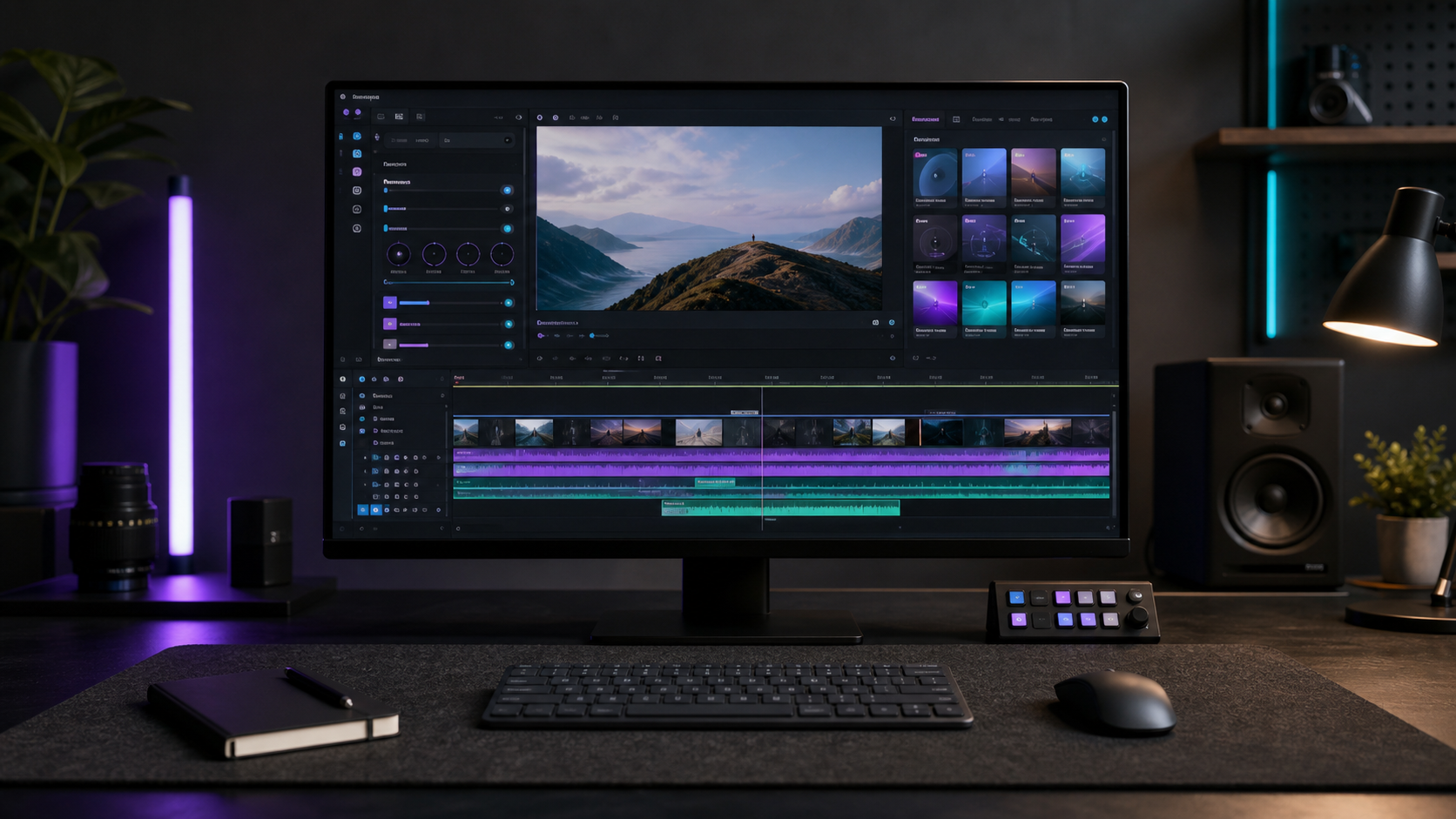
Editors should not need every plugin panel open all day. Create workspaces for common jobs, such as assembly, social clips, podcast editing, and final delivery.
For example, a short-form workspace might keep the timeline, source monitor, captions tools, transcript area, and the most used Premiere Pro plugin panel visible. Less frequent tools can stay installed but hidden until needed.
Adobe's official overview of Premiere Pro workspaces is worth reviewing before standardizing panel layouts across a team.
Standardize Naming And Access
If your team uses shared machines or shared project templates, document where each plugin lives and when it should be used. A short internal checklist can prevent editors from applying duplicate cleanup, using outdated export tools, or missing caption checks.
Useful standards include approved plugin versions, workspace presets, keyboard shortcuts, project template notes, and naming rules for generated sequences.
Audit Plugins Every Month
Plugin folders get messy when trials, old versions, and one-off utilities stay installed. Review your Premiere Pro plugin list monthly and remove anything that is unused, unsupported, or redundant.
Before removing a plugin, check active projects and archived templates. If a past sequence depends on a discontinued effect, keep a documented restore path.
Build A Faster Daily Routine
A practical plugin routine is simple: open the right workspace, run the repetitive first pass, review every automated change, then lock the edit before export. The best setup reduces decisions while keeping creative control inside Premiere Pro.
Document the stack for the team
Create a short plugin map for every recurring project type. List which plugin handles captions, which handles audio cleanup, which handles social cutdowns, and which steps must still be reviewed manually. This helps freelancers, assistants, and new editors follow the same workflow without guessing.
Include version numbers and license notes when the plugin affects delivery. If a project opens on a different machine, the editor should know what is required before the deadline. For a tool like Znippet, document when to use it for finding short-form moments and when to stay in a manual edit because the sequence needs custom storytelling.
Review the map after major Premiere Pro updates or operating system changes. A plugin stack that worked last month can still create problems after an update, so testing belongs in the routine.
Save the results where every editor can find them.
FAQ
How many Premiere Pro plugins should I keep installed?
Keep the tools your team uses regularly and remove plugins that duplicate the same job without a clear advantage. Fewer reliable plugins usually beat a crowded panel list.
Should every editor use the same plugin layout?
Core team tools should be consistent, but individual editors can customize workspace details. Shared standards matter most for handoffs, review, and delivery.
Where should I place AI editing plugins?
Place AI editing plugins near the workflow stage they support. Znippet for Adobe Premiere Pro usually belongs with short-form clipping, captions, silence removal, and timeline automation tools.
Sources and further reading
Background links used to check product details, terminology, and practical context.
- Adobe Premiere Pro official website
Adobe
Used as background context for product details, platform requirements, or workflow comparison.
- Premiere Pro User Guide
Adobe
Used as background context for product details, platform requirements, or workflow comparison.
- Premiere Pro plug-ins and extensions
Adobe
Used as background context for product details, platform requirements, or workflow comparison.
- Premiere Pro keyboard shortcuts
Adobe
Used as background context for product details, platform requirements, or workflow comparison.
- Premiere Pro workspaces
Adobe
Used as background context for product details, platform requirements, or workflow comparison.
- Motion Array official website
Motion Array
Used as background context for product details, platform requirements, or workflow comparison.
- FireCut official website
FireCut
Used as background context for product details, platform requirements, or workflow comparison.
- AutoPod official website
AutoPod
Used as background context for product details, platform requirements, or workflow comparison.
- Gling official website
Gling
Used as background context for product details, platform requirements, or workflow comparison.
Keep comparing workflows
Related comparison guides
Bring this workflow into your Premiere timeline
Use Znippet for Adobe Premiere Pro to find short-form moments, remove silences, add captions, and keep final control inside your existing edit.