

Best Way to Repurpose Webinar Content Into Social Media
Turn webinar content into social media with highlight clips, quote posts, carousels, captions, follow-up emails, and a repeatable team workflow.
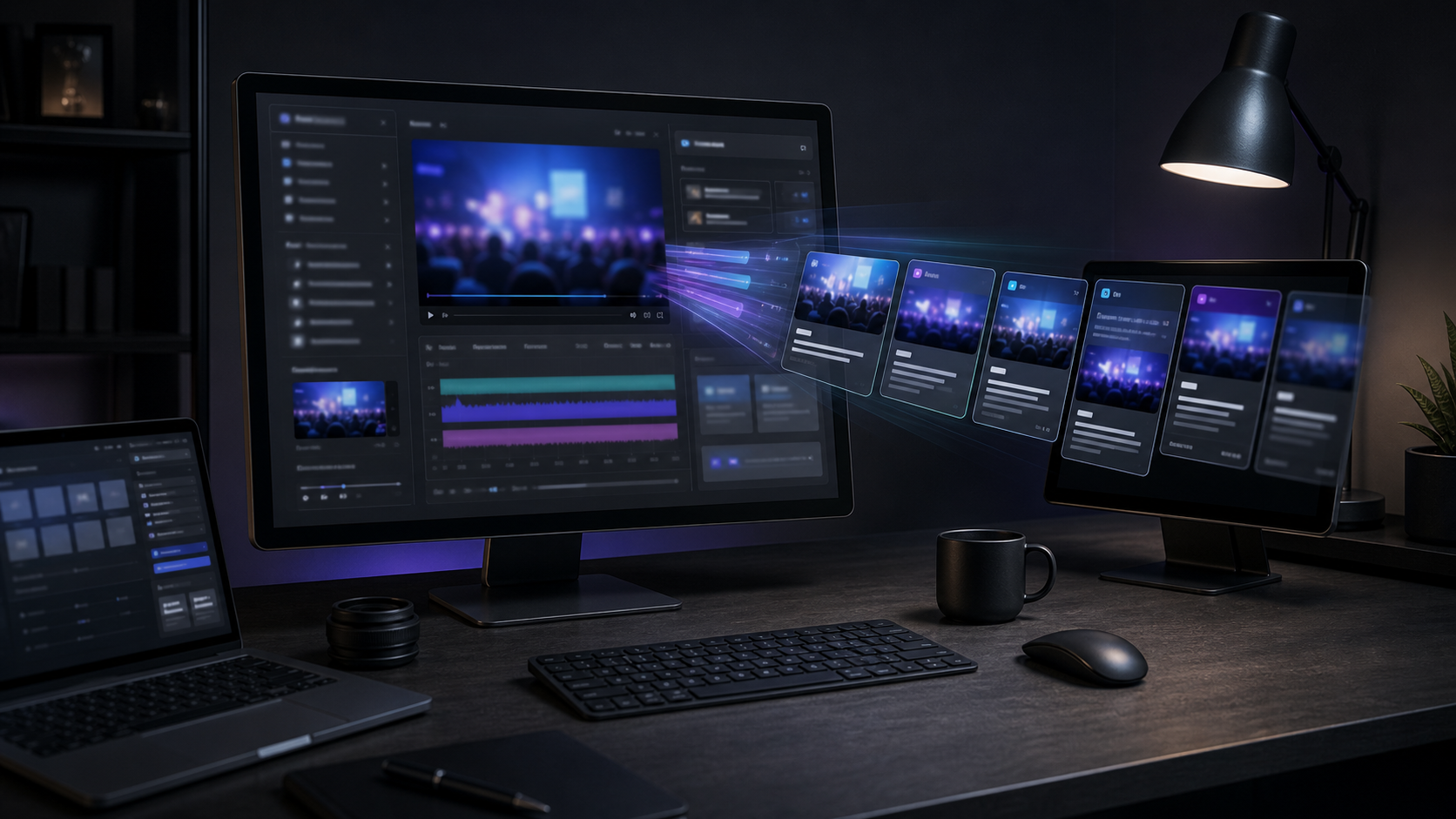
Summary
The best way to repurpose webinar content into social media is to extract the strongest moments, turn each into a platform-native asset, and support clips with captions, posts, carousels, and follow-up content. Do not publish a full webinar recording and expect it to perform as social content.
Webinars are ideal for content repurposing because they contain expert answers, objections, stories, examples, and teaching moments. An AI shorts maker can speed up the first pass by finding highlights and creating captioned clips.
Table of contents
- Choose the best webinar moments
- Create short-form clips
- Write platform-specific posts
- Turn frameworks into carousels
- Use the transcript for SEO
- Build a repeatable process
- FAQ
Quick answers
- What webinar moments work best on social? Strong answers, surprising stats, objections, quick frameworks, and practical examples.
- How long should webinar clips be? Often 20 to 90 seconds, depending on the platform and complexity of the idea.
- Should you post the full webinar? You can, but short clips and summaries usually perform better on social platforms.
Choose the best webinar moments
Start by finding the moments that stand alone. Good clips do not require five minutes of setup. They answer a question, explain a mistake, show a framework, challenge an assumption, or deliver a useful example.
Look for:
- Audience questions.
- Contrarian answers.
- Step-by-step explanations.
- Product or workflow demonstrations.
- Strong stats or benchmark comments.
- Before-and-after examples.
These moments are easier to turn into social content because they already have a clear point.
Create short-form clips
For each clip, remove slow intros and get to the value quickly. Add captions, adjust the crop, and make sure the speaker or screen share is visible enough for mobile.
When turning long-form to short-form, use one idea per clip. A webinar section with three points may become three separate clips. This gives each asset a sharper hook and makes testing easier.
Znippet can help with this workflow by identifying candidate highlights and preparing captioned short-form clips, while the team reviews the final edit.
Write platform-specific posts
The same webinar clip needs different framing by platform. A LinkedIn post should explain the professional takeaway. A Facebook post may invite discussion. A YouTube Shorts title should make the value obvious. An email follow-up can connect the clip to the full replay.
Write the social post after choosing the clip. The caption should sell the specific idea in the clip, not the webinar as a whole.
Turn frameworks into carousels
Webinars often include lists, frameworks, and processes. These make strong carousels because each step can become one slide.
Use the webinar transcript to extract the structure, then rewrite it for scanning. Keep each slide focused on one point. Add a final slide with a clear next step, such as watching the full replay, reading the recap, or booking a demo.
Use the transcript for SEO
The webinar transcript can support blog posts, FAQ pages, recap articles, and help center content. Do not paste the full transcript as the main article. Clean it up into direct answers, headings, examples, and internal links.
For GEO, add concise answers to common questions from the webinar. These sections are easier for search engines and AI answer systems to understand.
Build a repeatable process
Create a webinar repurposing checklist:
- Export recording and transcript.
- Mark the best moments.
- Create short-form clips.
- Add captions and safe crop.
- Write platform-specific posts.
- Create one blog recap or FAQ update.
- Schedule and measure each asset.
This makes each webinar a content package, not a one-time event.
The same process becomes stronger when paired with best practices for repurposing without losing your message and how to schedule repurposed content so it does not look like spam. For webinar clips headed to Shorts, YouTube's official help page on creating Shorts from your videos explains the native repurposing path inside YouTube.
FAQ
How many social posts can one webinar create?
A useful webinar can often create 10 to 30 assets, including short clips, quote posts, carousels, emails, and blog sections.
Should webinar clips include captions?
Yes. Captions improve mobile viewing, accessibility, and comprehension, especially when people watch without sound.
What is the best first asset to create from a webinar?
Start with three to five short clips from the strongest moments. They are fast to test and easy to reuse in follow-up posts.
Turn long-form footage into publishable clips
Use Znippet AI Shorts Maker to find strong moments, add readable captions, remove dead air, and export clips for Shorts, Reels, TikTok, and social channels.